
Play video files from a NAS or USB drive on Android TV
Yonto Player plays the video files on your NAS or USB drive straight from the share, with no Plex, Jellyfin or Emby server in between, and makes them a library of films and series with posters and descriptions. On a TV you type the share’s address and password on your phone, from a QR code, and your first source is free.
In Yonto Player on your Android TV, choose Add source, then SMB or WebDAV for a NAS, or Folder on this device for a USB drive, and open Browse to see its folders.
On an Android phone or tablet, the same SMB and WebDAV shares play, and Folder on this device opens a folder on the phone with Choose folder (Your media server and NAS on an Android phone or tablet). There, a WebDAV share’s films and episodes can also be downloaded to watch offline.
Which type to choose
Section titled “Which type to choose”- SMB for a NAS, or a Windows or Mac computer, that shares a folder over SMB, which is how most NAS boxes share. Yonto Player speaks SMB 2 and 3, not the older SMB 1.
- WebDAV for a NAS or a server that shares a folder over WebDAV.
- Folder on this device for a USB drive plugged into the television, or the box’s own storage.
On a Synology NAS, Play videos from a Synology NAS on Android TV says what to turn on in DSM and what address to type. On a QNAP or UGREEN NAS, Play videos from a QNAP NAS on Android TV and Play videos from a UGREEN NAS on Android TV do the same for QTS and UGOS Pro. For an OpenList or Alist library, Play an OpenList or Alist library on Android TV over WebDAV gives the WebDAV address and the permission its user needs.
What you need
Section titled “What you need”- Yonto Player on your television, from the download page, and a phone to type on if you would rather not use the remote.
- For SMB or WebDAV: the share’s address, and a username and password unless the share lets guests in. The television and the NAS need to be on the same network.
- For a USB drive: Android 10 or later on the television.
A NAS over SMB or WebDAV
Section titled “A NAS over SMB or WebDAV”Watch it on SMB
Section titled “Watch it on SMB”Watch it on WebDAV
Section titled “Watch it on WebDAV”Step by step
Section titled “Step by step”- Open Yonto Player and choose Settings, Sources, Add source. Choose Source type, then SMB or WebDAV.
- Choose Set up from your phone, and scan the QR code with your phone’s camera.
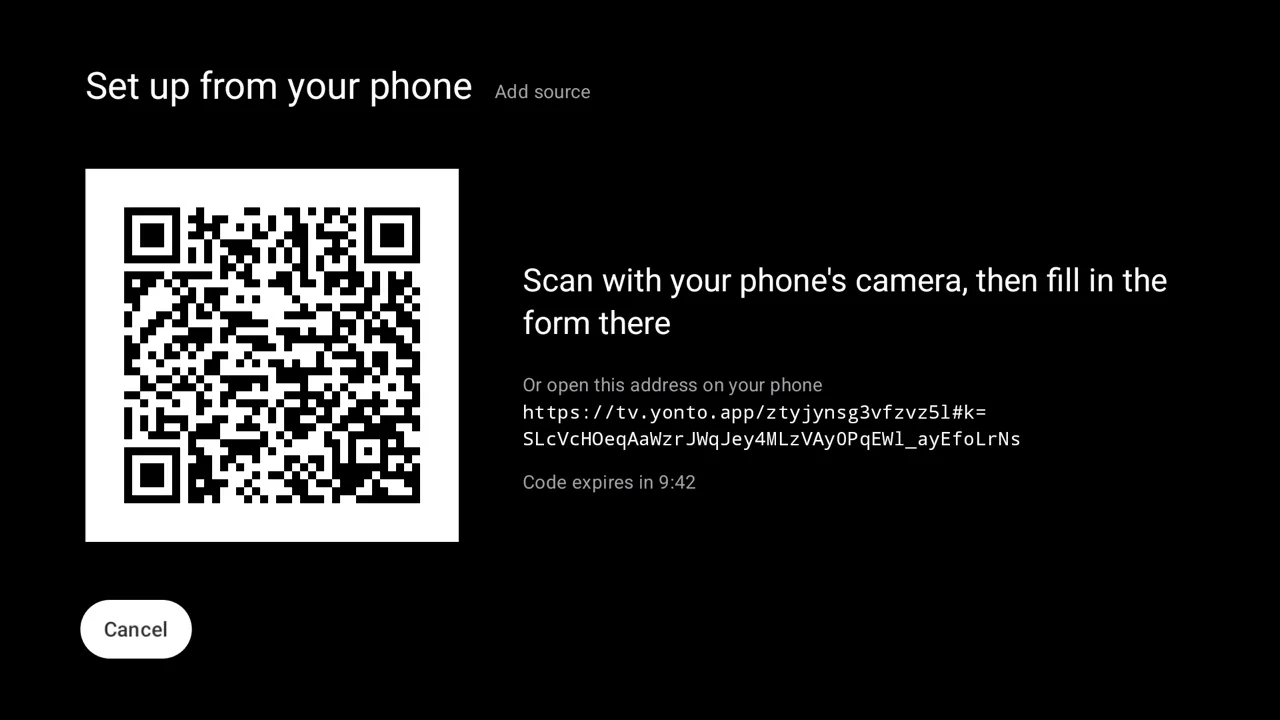
- On the page that opens, enter the Server address, then Username, if it needs one and Password, and choose Send to the TV.
- For SMB, the address is the server and then the share, like
smb://nas.local/media. Add a folder to open there, likesmb://nas.local/media/Movies. Leave the username and password empty for a share that lets guests in, and writeDOMAIN\userfor a user in a Windows domain. - For WebDAV, the address is the folder to open, like
http://nas.local:5005/dav. Anhttp://address is not encrypted, and the form says “This address isn’t encrypted, so the password crosses your network in the clear.”; usehttps://where your server offers it.
- For SMB, the address is the server and then the share, like
- The television’s form fills in and says “Filled in from your phone. Check it, then save.”. Choose Test connection, which reads that folder: “Connected successfully” means it worked. Choose Save.
The login is sent only to that server. Nothing is saved until you choose Save with the remote. Prefer the remote? Leave out step 2 and type in the form: pressing OK on a field opens an on-screen keyboard.
A USB drive
Section titled “A USB drive”- Plug the drive into the television. It shows up in Yonto Player once the box has scanned it.
- Choose Settings, Sources, Add source, then Source type and Folder on this device.
- Choose Storage. Android asks whether Yonto Player may read the videos on this device: allow it. Then pick the drive from the list, where the box’s own storage comes first.
- Choose Save. This type has no Test connection: a storage you can pick is one Yonto Player can read.
Browsing: a library, and the folders beside it
Section titled “Browsing: a library, and the folders beside it”Pick the source from the source chip at the top left of Home, then open Browse.
Yonto Player groups your videos into Films and Series, with a series’ seasons and episodes, from their file names, and shows them on Home, in Browse and in Search.
A video whose name says nothing about what it is stays under Other videos.
Recently added comes first, with the titles whose files changed last, which is when they were copied there.
Films, Series and Other videos list what arrived last first too, and a series moves up when a new episode is copied there; in Browse, Sort → Title puts them in title order instead.
In Browse, Films and Series have a Genre filter with the genres your titles have, from their .nfo files or, where those leave them out, from the online lookup, which names them in your language where it has a name for them and in English otherwise.
It shows the posters and descriptions you already keep beside them, named the way Kodi and Jellyfin name them (below), and looks up online what they leave out (how).
A title with neither shows a picture of its video instead, filling its card and without the black bars a widescreen video has above and below: the cloud drive’s own thumbnail of it, or else a frame from a little way in.
A video in a format the device can’t decode, one in iCloud Drive that isn’t downloaded, and one on Dropbox, which makes no pictures of videos, keep their name on a plain card.
The first time a source opens, Yonto Player reads every folder, which takes a while on a large share: titles show up as they are found, and a note says it is still scanning.
After that it checks for new videos whenever you open the source and every half hour. Rescan in Browse checks now, or reads every folder again with Rescan everything.
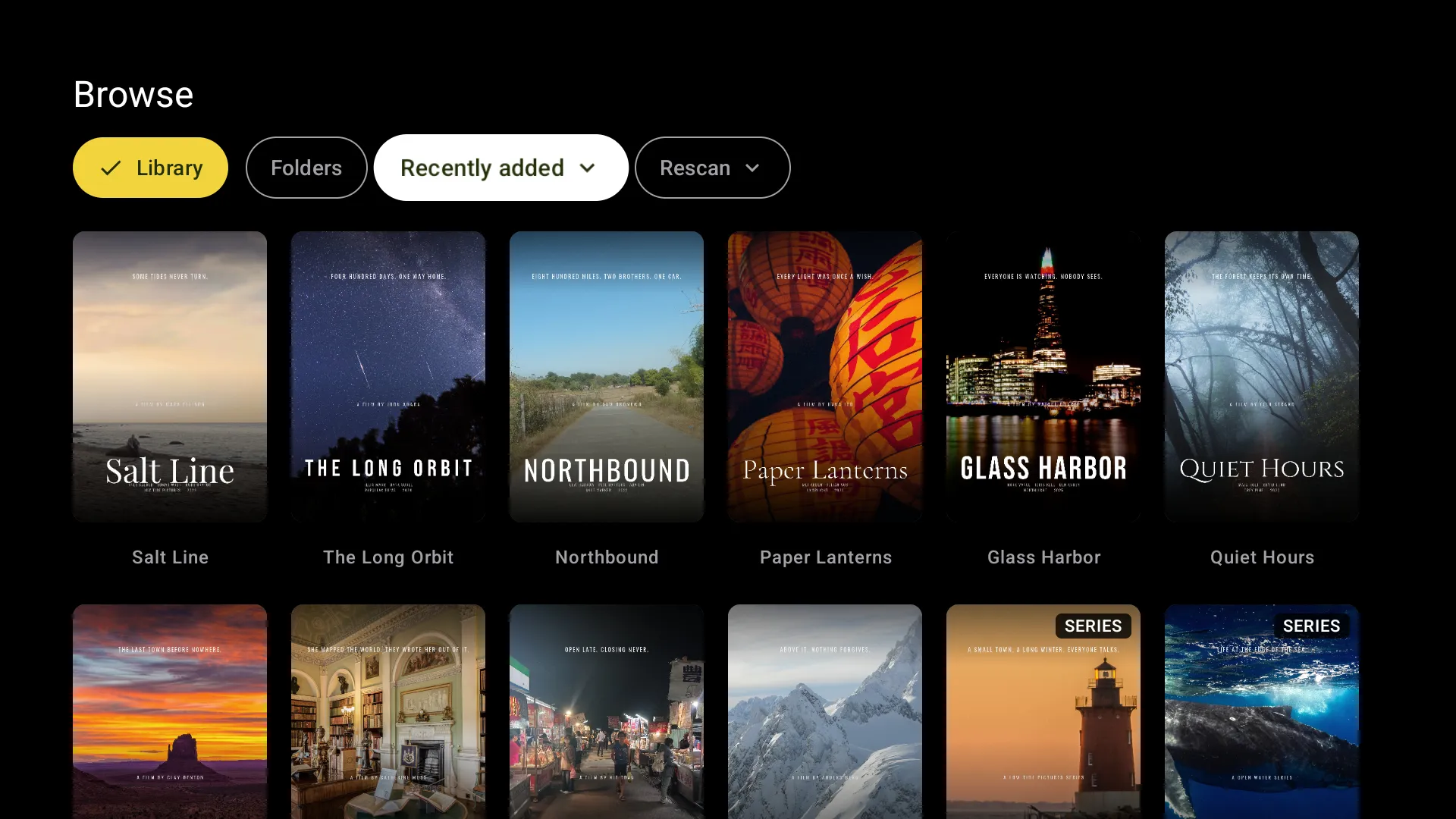
Folders, beside Library in Browse, shows the source’s folders and then its videos, as a list of names with each video’s size:
- Press OK on a folder to open it, and Back to go up: the remote lands on the folder you came out of.
- Press OK on a video to play it.
- Sort orders the list by Name, Date or Size.
- Only video files are listed, and names starting with a dot are hidden. Sources says which files play.
- On a USB drive, a folder shows only when there is a video somewhere inside it.
- Search finds the titles in the library by part of their name, and by their genres, actors and directors. It does not look inside the video files.
Posters and descriptions from your own files
Section titled “Posters and descriptions from your own files”Yonto Player shows the pictures and descriptions you already keep beside your videos, named the way Kodi, Jellyfin and Emby name them, and reads them from the share itself, so they need no account. They always come first: an online lookup only fills in what they leave out.
- A film takes
poster.jpg,folder.jpgorcover.jpgfrom its own folder, or<video name>-poster.jpgbeside the video, as its poster, andfanart.jpg,backdrop.jpg,background.jpgor<video name>-fanart.jpgas its backdrop. - A series takes the same names from the show’s folder, the one that holds the season folders. With no poster there,
season01-poster.jpgorSeason 1/folder.jpgstands in for it. - A picture named for a folder (
poster.jpg) counts only where the folder holds one title’s videos: aposter.jpgin a folder of thirty films is none of theirs. Use<video name>-poster.jpgthere. .jpg,.jpeg,.pngand.webpare read. When several exist the more specific name wins: the video’s own, thenposter,folderandcover.- Descriptions come from the
.nfofiles Kodi, Jellyfin, tinyMediaManager and MediaElch write:movie.nfoor<video name>.nfofor a film, andtvshow.nfoin the show’s folder. Yonto Player reads the title, year, description, genres, rating, running time, age rating, cast (with their roles, but not their pictures), directors, writers, studios and the IMDb, TMDB and TheTVDB ids. A file that only holds an IMDb or TMDB link gives that id and nothing else. An address inside an.nfois never opened. - A damaged file, an
.nfoover 512 KB or a picture over 12 MB is skipped, as if it were not there. - The episode Play will play shows its title, description and picture above the episodes, when the online lookup has them for a matched series. Your own episode pictures (
<episode>-thumb.jpg), episode.nfofiles and season posters in the season list are not shown yet. - A scan reads these files along with the folder. A quiet Rescan sees a folder that changed; to pick up a picture or
.nfoyou replaced in place, use Rescan everything. - A USB drive or the box’s own storage chosen under Storage lists videos only, so it shows no pictures. A folder picked under Folder on this device, or a share, shows them.
Posters and descriptions looked up online
Section titled “Posters and descriptions looked up online”For a film or a series your own files don’t fully describe, Yonto Player looks up a poster, a backdrop, a description, the year, the genres, the running time, the age rating, the cast (with pictures), the directors, writers and studios, and the IMDb, TMDB and TheTVDB ids.
It is free, with or without Pro.
A title with both a poster and a description of its own is never looked up, so its cast comes only from its own .nfo; neither is a video under Other videos.
- It only fills gaps. Your own pictures and
.nfofiles always win. An.nfothat holds an IMDb or TMDB id is looked up by that id, so it lands on the right title. So is an id you write into a file or folder name, as Plex does (Movie (2019) {tmdb-603}) and Jellyfin and Emby do (Movie (2019) [imdbid-tt0133093],[tmdbid-603]). A TheTVDB id ([tvdbid-…]) only helps pick the right one among the matches. The id counts on the file, or on the folder that names the title, not on a folder above it that holds many. - Other sources get it too. A source that isn’t your own files (a site, a media server or a catalogue) is looked up for a title whose page lacks a poster or a description from the source. It sends the title and year the source gives, what the source says is never replaced, and the same switch in that source’s settings turns it off. A title page that shows something looked up says so with the same credit. So is a card in History or on the Watch list with no picture on this device, as one Sync brings from another device: it takes the poster from its source, or looks it up the same way when the source has none. A card whose source isn’t on this device keeps its placeholder until the source is, and a card from your own files is never looked up.
- Long shows numbered in one run (
Show - 105) are put into their seasons once a series is matched, by how many episodes each season has. The files keep their names and what you watched. - Missing episodes of a matched series are listed under its episodes (Not in your files: S01E03–E09) for the seasons you have some of. Nothing about them can be played.
- It asks through Yonto’s service. Yonto Player asks Yonto’s own service, which asks TheTVDB for you, so TheTVDB never sees your IP address. The pictures come through Yonto’s service too.
- Or TMDB, with your own key. Under Settings > Metadata you can type your own TMDB API key (free: sign up, then copy it from TMDB’s Settings > API; the read access token works too). On a TV, Set up from your phone under Check and save saves typing it with the remote: scan its code with your phone’s camera, paste the key into the page that opens and choose Send to the TV, then choose Check and save on the TV. Yonto Player checks it with TMDB before keeping it, and from then on asks TMDB itself, straight from your device, for every lookup: TMDB sees your IP address and the same titles and years, and nothing goes through Yonto’s service. Titles already matched are matched again on TMDB, by their IMDb or TMDB id first; a title you picked under Wrong title? stays as you picked it. Remove key goes back to Yonto’s service the same way. The key stays on the device.
- What is sent: the title and year Yonto Player read from the file and folder names, whether it is a film or a series, and, for two series with the same name, an episode number to tell them apart; once a series is matched, the number of each of its seasons, with the service’s own id for it; the app’s language; and a random id the app makes only for this, which lets the service limit how often one app asks.
- What is never sent: a file’s name, a folder, a path or the server’s address, your licence or the device’s id. The service keeps nothing about who asked; it keeps TheTVDB’s answers, for everyone. The privacy policy has the rest.
- Language. Titles and descriptions come in the app’s language when TheTVDB (or TMDB) has them, and in English otherwise. TheTVDB has Chinese descriptions for only about half of its titles.
- Pace. The first lookup of a large library asks for one title every couple of seconds, so posters arrive over a few minutes. If the service is busy or can’t be reached, the library shows what it has and tries again later.
- Credit. A title’s page that shows something looked up says “Metadata provided by TheTVDB” (or TMDB), linked on a phone and with the address on a TV, and so does Settings > About once anything has been looked up. With your own TMDB key, About says “This product uses the TMDB API but is not endorsed or certified by TMDB.”
- Episode titles, pictures and descriptions are not looked up yet.
Wrong title?
Section titled “Wrong title?”On a library title’s page, Wrong title? opens Which title is this?, and so does Find this title when nothing was found. On a TV the button is beside the Play button; on a phone or tablet it is under the description. It searches for the title as your files name it, which you can change, and lists what it finds with each one’s poster, title and year.
- Pick one to use it.
- Choose None of these: use the file names to drop the match and show only what your files say.
Your choice stays: no Rescan or later lookup changes it.
Turning it off
Section titled “Turning it off”Each files source’s form in Settings > Sources, when you add it or edit it, has Look up posters and descriptions online, On by default. Off shows only what your files say, and sends nothing for that source.
Picking up where you left off
Section titled “Picking up where you left off”A video you play goes into History, and into Continue playing on Home, under its title, or under its file name when the library has not placed it. Choosing it there plays on from where you stopped. When an episode ends, the next one in the series starts after a short countdown. A video you open from Folders is not followed by the next one in the folder.
Subtitles
Section titled “Subtitles”Subtitles inside the file, and subtitle files beside it, are under Subtitles in the player.
A subtitle file goes with a video when it has the video’s name, with or without a language before its extension: Movie.srt, Movie.en.srt and Movie.zh.srt all go with Movie.mkv.
SRT, WebVTT, ASS and SSA files are read, in UTF-8, GBK, Big5 or Windows-1252; ASS and SSA show their words with little of their styling.
A subtitle file that cannot be read drops out of the list when you choose it, and the video plays on.
On the television’s own storage or a USB drive, subtitle files beside a video are not picked up yet, because Android lists only the videos there.
What Android needs
Section titled “What Android needs”- Folder on this device needs Android 10 or later, and your permission to read the videos on the television. Below Android 10 the type is not offered.
- SMB and WebDAV need no permission, only a network that reaches the server.
- What plays depends on the television’s own decoders. H.264 and H.265 in MP4 or MKV are the safe choice; AVI, WMV and RMVB play in Yonto Player’s own second player, which also gets a try at any file the television cannot decode.
Each share or drive is one source. Your first source is free; more sources need Pro. Pro is one payment, not a subscription, for up to 5 devices, TV, phone and tablet together, and there is no Yonto account.
If something goes wrong
Section titled “If something goes wrong”These show in Browse, with Retry.
“Couldn’t reach the server. Check that it’s on and on the same network.” The NAS did not answer. Check that it is on, that the television is on the same network, and that the Server address is right, under Settings, Sources, the source, then Edit.
“The server didn’t accept the username or password. Check them in this source’s settings.” Go to Settings, Sources, choose the source, then Edit, and correct them. For an SMB share that lets guests in, leave both empty.
“This place can’t be read. Check that the drive is plugged in, or add the folder again.” The USB drive was unplugged, or Yonto Player is no longer allowed to read it. Plug it back in and choose Retry, or edit the source and choose Storage again.
Troubleshooting lists the other messages the app shows.
Yonto Player provides no content.