
Your media server and NAS on an Android phone or tablet
Yonto Player on an Android phone or tablet plays your Plex, Jellyfin or Emby server, the video files on your NAS over SMB or WebDAV, and a folder on the device, side by side in one app. The Android TV app plays the same sources with the remote, and one Pro covers both.
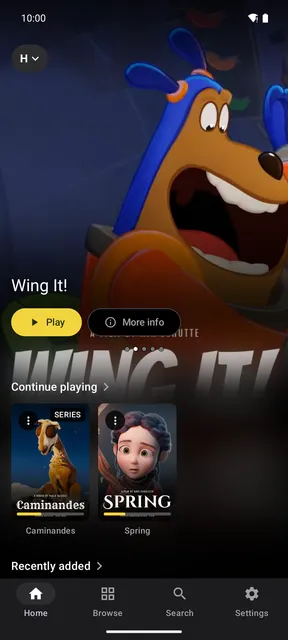
What it plays
Section titled “What it plays”- A Plex, Jellyfin or Emby server: your film and TV series libraries, with the posters, descriptions and episodes the server holds.
- A NAS or a computer sharing a folder, over SMB (SMB 2 and 3) or WebDAV, with no media server in between.
- A folder on the phone or tablet, as Folder on this device.
Each one is a source. Open the source chip at the top left of Home to switch between them.
Add a source
Section titled “Add a source”- Install Yonto Player from the download page and open it.
- Tap Settings, then Sources, then Add source. On Home, the demo library’s card has an Add source button too.
- Tap the kind of source you want, like Add SMB or Add Jellyfin. The form opens already on that kind.
- Fill in the form, tap Test connection, and when it says “Connected successfully”, tap Save.
What each type asks for:
- Jellyfin and Emby: the Server URL, like
http://192.168.1.20:8096, and your Username and Password. With no port, Yonto Player also tries the server’s own, 8096. Play your Emby server on an Android phone or tablet goes through Emby step by step. - Plex: tap Log in next to Account, then Open plex.tv/link, which opens Plex’s page in your browser, where you sign in and allow the link. Your Plex password is typed on Plex’s page, never in Yonto Player. For a server of your own that Plex does not share with your account, type its address instead, with its Plex token if it asks for one.
- SMB: the Server address, the server and then the share, like
smb://192.168.1.20/video, and a username and password unless the share lets guests in. - WebDAV: the Server address of the folder to open, like
http://192.168.1.20:5005/video, and the username and password if it asks for them. - Folder on this device: tap Choose folder, pick the folder in Android’s picker and allow Yonto Player to read it.
A username and password are sent only to that server, and stay on the device; with Sync on, they reach your other devices too, encrypted so only they can read them. On a NAS, Synology, QNAP, UGREEN and OpenList or Alist say what to turn on and what address to type; the form on a phone asks for the same.
Browsing
Section titled “Browsing”The tabs are Home, Browse, Search and Settings; on a tablet they sit down the side.
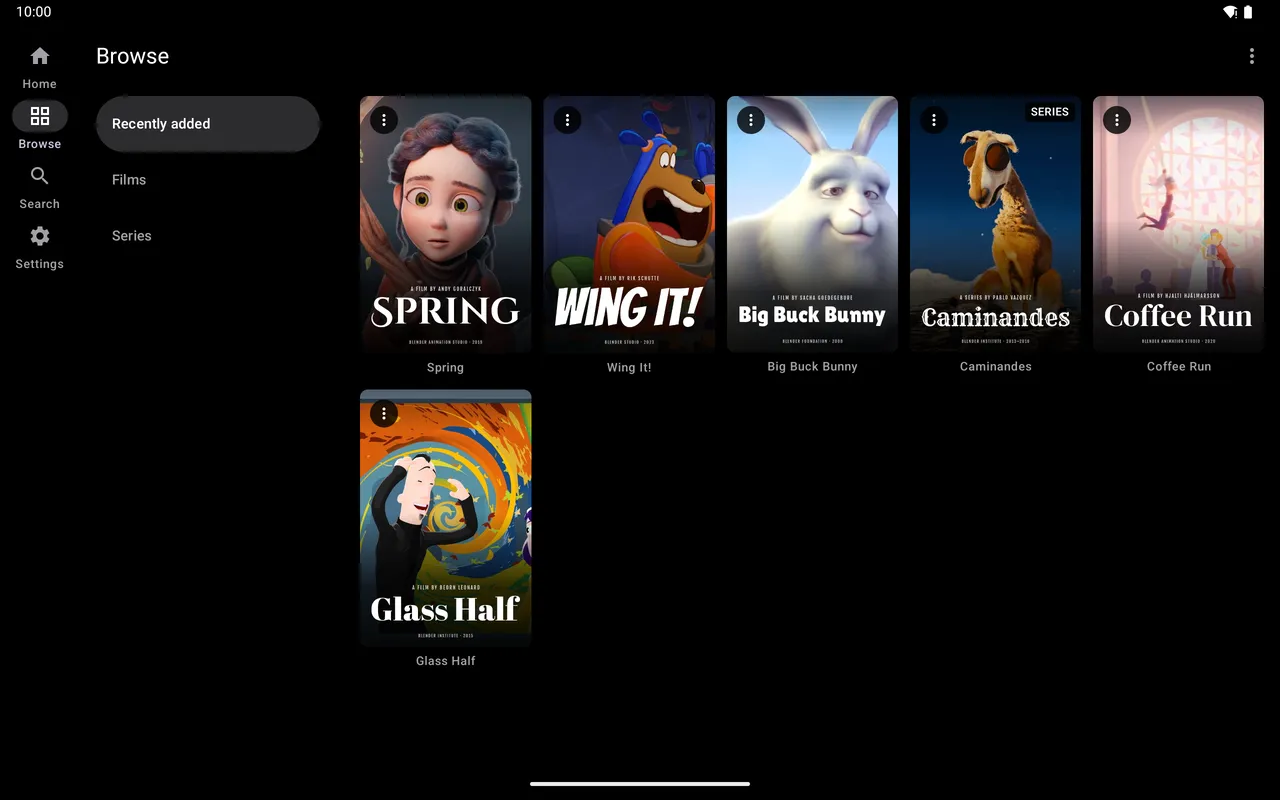
- A server shows its films and series on Home and in Browse, and a title’s page has its description and episodes. Search asks all your sources at once.
- A share or a folder groups its videos into Films and Series from their file names, with the posters and descriptions kept beside the files or looked up online, and Search finds titles by name. In Browse, ⋯ has Folders, which shows the folders and then the videos, by name with each video’s size: tap a folder to open it, and Back to go up, or tap the chip with the folder’s name to jump to any folder above it. Library in the same menu goes back, and Sort there orders the list by Name, Date or Size. Under Rescan in that menu, Check for new videos looks for new videos, or reads every folder again with Rescan everything.
Watching
Section titled “Watching”- Continue playing on Home takes you back to where you stopped, and its heading opens History, which lists everything you have played, from every source. Each entry’s menu has Details and Remove.
- When an episode from your server ends, the next one starts after a countdown. In a folder, the next video does not start by itself yet.
- Audio and subtitles, the subtitles button at the top of the player, lists the audio tracks and the subtitles inside the file. A subtitle file beside a video, like
Movie.srtorMovie.en.srtbesideMovie.mkv, is listed there too, from an SMB or WebDAV share or a folder on the device. - Where the phone has no decoder for AC3, E-AC-3, DTS or TrueHD sound, Yonto Player decodes it itself, so the film plays with sound (DTS, TrueHD and Dolby audio).
- Double-tap either side of the picture to skip back or forward (10 seconds, or what Settings → Player says), hold it to play faster until you let go, drag across it to seek, and pinch to zoom. Fill screen and Picture in picture are at the top, Playback speed and Lock screen are at the bottom. On a phone the player opens in landscape, and Turn to portrait, beside Lock screen, stands it upright.
- Tap Picture in picture and the video carries on in a small window, on phones and tablets that offer it. Leaving the app does not open one by itself.
Each device keeps its own Continue playing and History: what you watch on the phone does not show on your TV (History on your TV and phone).
On a Plex, Jellyfin or Emby server, a WebDAV share or a cloud drive, a title’s page has a Download button to watch it later with no connection, with Pro (Download to watch offline).
What it does not do
Section titled “What it does not do”If you already play files in VLC or MX Player, or watch your server in its own app, those do things Yonto Player does not. Yonto Player is for having the server and the shares in one place, with one Continue playing.
- Only a media server converts a video. A share and a folder play the file as stored, through the phone’s own decoders, so a video the phone cannot decode does not play unless a Jellyfin, Plex or Emby server converts it, and nothing makes a file smaller for a slow connection.
- An SMB share and a folder on the device do not download. A Plex, Jellyfin or Emby server, a WebDAV folder and a cloud drive can download to watch offline; an SMB share and a folder on the device do not.
- Films and TV series only. Music, photos and live TV from a server do not appear, and a share or folder lists video files only.
- No episode pictures or descriptions for files. A share or folder shows the pictures and
.nfodescriptions kept beside its videos (which names) and looks up what they leave out for each film and series, but not yet for each episode.
What Yonto Player does not do lists the rest.
Free or Pro, on every screen
Section titled “Free or Pro, on every screen”Your first source is free, the whole player with it. A second source, such as a NAS share beside your Plex server, needs Pro, and so do installing a plugin, downloading to watch offline and Sync. On our website Pro is US$7.47 instead of US$14.95 while the offer runs, until December 31, 2026, one payment, not a subscription. One licence works on up to 5 devices at a time, across every Yonto Player app: TVs, phones and tablets together (Devices). In the app on Android TV and Android phones and tablets, you can try Pro free for 7 days, once per device, with no payment details, and it ends on its own. Yonto Pro says how to turn it on with your key.
Yonto Player provides no content. Plex, Jellyfin, Emby, VLC, MX Player, Dolby and DTS are trademarks of their owners, and Yonto Player is not affiliated with or endorsed by them.