
Play your Jellyfin library on Android TV
Yonto Player plays your Jellyfin films and series on Android TV, with the watched marks and resume points your server already has, and you add the server by typing its address and password on your phone, from a QR code on the TV. With Pro, your Plex or Emby server and your NAS shares sit beside it in the same app, with one search across them.
Install Yonto Player on your Android TV, choose Add source, pick Jellyfin as the type, and fill in your server on your phone.
On an Android phone or tablet, you type into the same form yourself: tap Settings, Sources, Add source, tap Add Jellyfin, then tap Test connection and Save. Your media server and NAS on an Android phone or tablet says what else works there.
What you need
Section titled “What you need”- A Jellyfin server you can sign in to, and its address, like
https://jellyfin.example.com:8096. - A username and password for it, or an API key and user ID.
- Yonto Player on your television, from the download page, and a phone to type on.
- Open Yonto Player and choose Settings, Sources, Add source. Choose Source type, then Jellyfin.
- Choose Set up from your phone. The television shows a QR code.
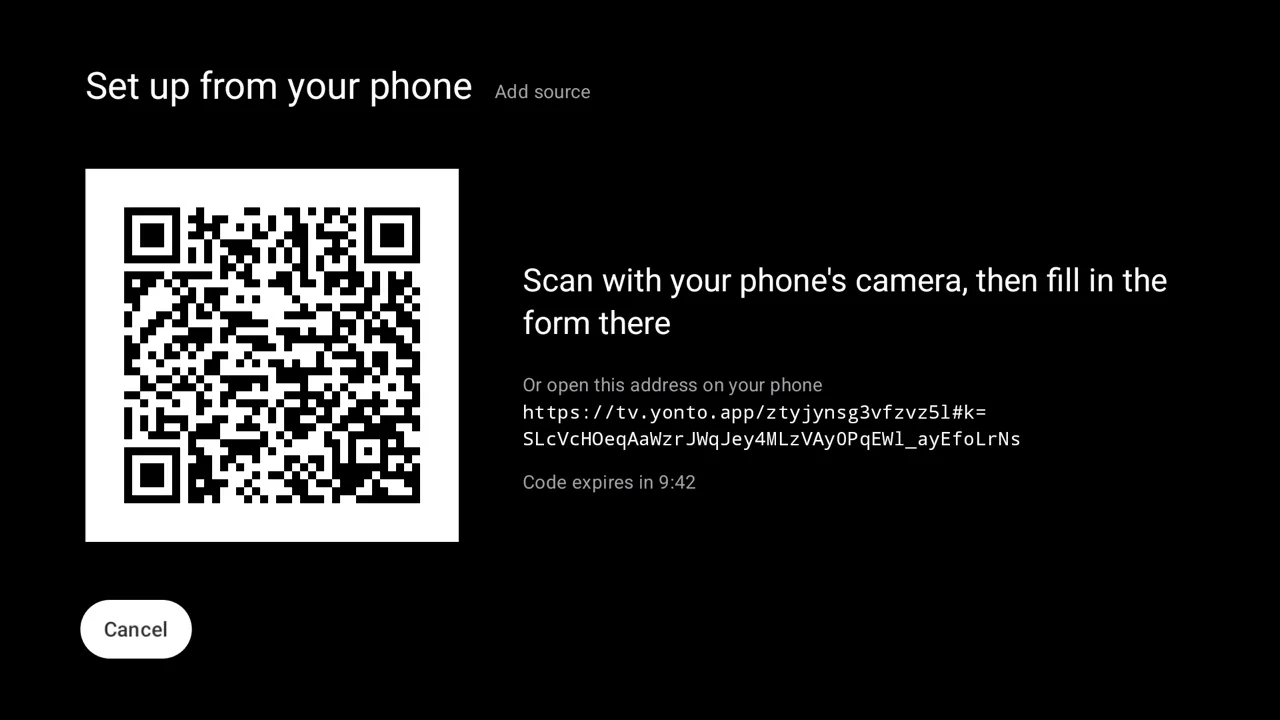
- Scan the code with your phone’s camera. A page opens with the same form: enter the Server URL, your Username and Password, then choose Send to the TV.
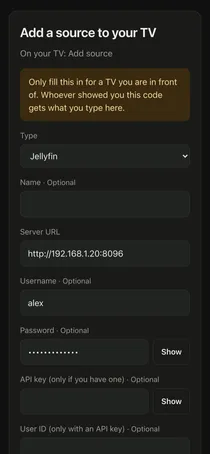
- The television’s form fills in and says “Filled in from your phone. Check it, then save.”. Choose Test connection. A working server answers “Connected successfully”. Choose Save.
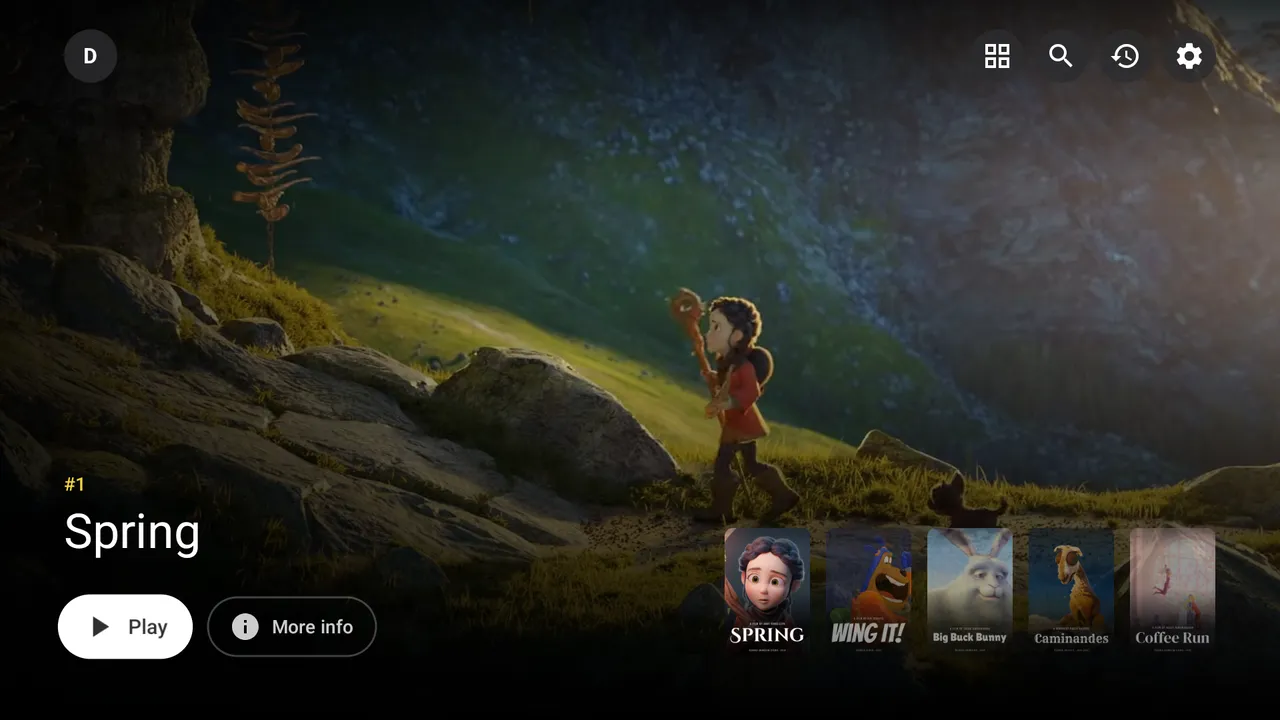
- Browse your Jellyfin library from Home. Pressing OK on a title opens its page, and Back returns you to the card you left.
Nothing is saved until you choose Save with the remote, and what you type on the phone is encrypted on its way to the television (Sources). Prefer the remote? Leave out step 2 and type in the form: pressing OK on a field opens an on-screen keyboard.
Yonto Player tells your server what the television can play, and the server converts a file it cannot, such as 4K on a 1080p box or HDR on a screen without it; Let the server convert videos in the source’s editor turns that off. Yonto Player keeps your history on the device. Your first source is free; more sources need Pro.
Coming from another Jellyfin app? Play your Jellyfin library on Android TV in another app says what carries over and what Yonto Player does not do.
If something goes wrong
Section titled “If something goes wrong”“Server URL needs a full address, like https://example.com:8096”
The Server URL isn’t an address, such as one with a space in it.
Type it like 192.168.1.20 or https://jellyfin.example.com:8096.
“Can’t reach Source”
The server didn’t answer.
An address with no port and no https:// is tried as you typed it, then on Jellyfin’s own port, 8096, so 192.168.1.20 finds a server on 192.168.1.20:8096.
If yours listens on another port, add it after a colon.
Otherwise check that the server is on and that this device is on its network.
“Check the username and password by editing the source in Settings.” The server turned down the login. Go to Settings, Sources, choose the source, then Edit, and correct them. Jellyfin can lock an account after a few wrong tries, so check the password before you retry.
“The server answered with a page that is not the media server: check the server URL.” The address reaches some other web page, such as a router or a proxy. Correct the Server URL, including the port.
Troubleshooting lists every message the app shows.
Yonto Player provides no content. Jellyfin is a trademark of its owner, and Yonto Player is not affiliated with or endorsed by it.