
Subtitles on Android TV
Yonto Player shows the subtitles inside a video and the subtitle files beside it on Android TV, Google TV and Android boxes, in the free app. With Pro it also searches OpenSubtitles.com and assrt.net for a subtitle as you watch. This page says where subtitles come from, how to name a subtitle file, and what to check when they don’t show.
Choose subtitles in the player
Section titled “Choose subtitles in the player”On a TV, open the player’s controls and choose Subtitles. It lists every subtitle the video has, its own tracks and the files beside it, with Off to turn them off. On an Android phone or tablet the same list is in the player’s Audio and subtitles panel.
What you pick is kept for the whole film or series: resuming it, or playing another of its episodes, starts on your pick wherever that episode has a subtitle in the same language.
Subtitles inside the file
Section titled “Subtitles inside the file”An MKV or MP4 file often carries its subtitles as tracks inside it. Text subtitles, such as SRT, ASS, SSA and WebVTT, and picture subtitles, such as PGS from a Blu-ray, are listed under Subtitles like any other. ASS and SSA show their text with only some of their styling.
Subtitle files beside the video
Section titled “Subtitle files beside the video”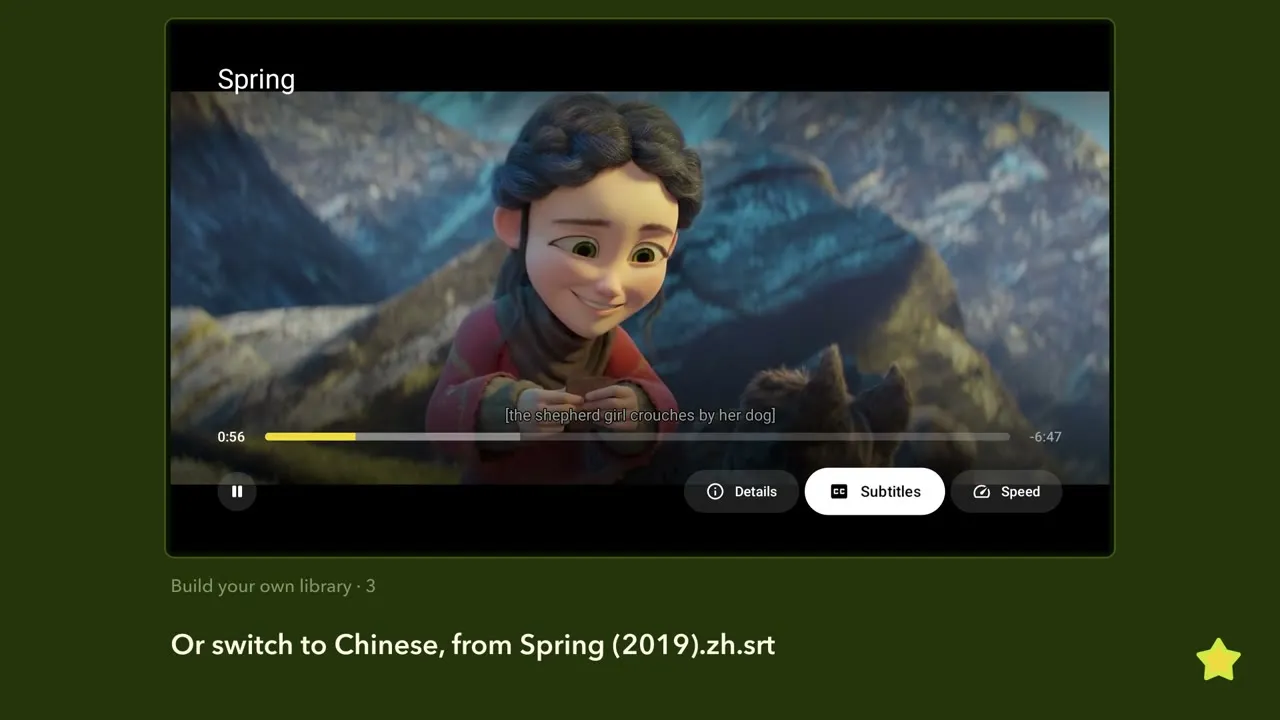
A subtitle file goes with a video when it is in the same folder and has the video’s name, with or without a language before its extension:
Movie.srtgoes withMovie.mkv.Movie.en.srtandMovie.zh.srtgo with it too, named English and Chinese in the list.chsandchtmark Simplified and Traditional Chinese, as inMovie.chs.ass, so the right script is picked for your Subtitle language.- Upper and lower case don’t matter, so
movie.srtgoes withMovie.mkv.
SRT, WebVTT, ASS and SSA files are read. They are picked up on an SMB share, a WebDAV server and, on an Android phone or tablet, a folder on the device, whether you play the video from Browse, Continue playing or History (Play video files from a NAS or USB drive on Android TV). A file that cannot be read drops out of the list when you choose it, and the video plays on.
On Android, the subtitle files a Jellyfin, Plex or Emby server keeps beside a video are offered under Subtitles too, and one the server marks as default comes up switched on.
Subtitle language, size and background
Section titled “Subtitle language, size and background”Settings → Player has, under Audio and subtitles (Player settings):
- Subtitle language, the language subtitles are picked in, The app’s language by default.
- Subtitles, when they come on: Automatic, the default, turns them on when the audio isn’t in your subtitle language; Always turns them on whenever the video has subtitles in your language; Off starts every video without them.
- Subtitle size: Small, Normal, Large or Extra large.
- Subtitle background: an Outline around the text, or a translucent black Box behind it, which reads better over a bright picture.
Simplified and Traditional Chinese are told apart where the file says which. A caption style turned on in the TV’s accessibility settings can still win over size and background.
Search for subtitles
Section titled “Search for subtitles”When a video has no subtitles in your language, Search for subtitles at the end of the player’s Subtitles list finds one online. It searches OpenSubtitles.com, and assrt.net too when your Subtitle language is Chinese, straight from your device, never through Yonto’s servers. It looks by the title’s IMDb or TMDB id where its page has one, otherwise by its title and year, and an episode by its season and number, never by a file’s name. It looks for your Subtitle language and for English.
Pick a result, and the video plays on with it from where you were. A subtitle you picked is kept on the device and offered again the next time that film or episode plays, up to three for each and sixty in all.
The search uses your own free key for each site, added in Settings → Player → Subtitle search:
- OpenSubtitles.com API key: sign up at opensubtitles.com, add a consumer on its API consumers page, and copy its API key.
- assrt.net token: sign up at assrt.net and copy the token from your user page. assrt.net is searched only for Chinese subtitles.
Paste a key and choose Check and save; the site checks it before it is kept. On a TV, Set up from your phone on that page lets you paste the keys on your phone instead of typing them with the remote. A site without a key isn’t searched.
Searching for subtitles is part of Yonto Pro, on Android TV, Android phones and tablets, the Mac, Windows and Linux; the iPhone and iPad apps are coming soon. It came to Android in version 5.5.11. Subtitles the video already has, and the files beside it, stay free. What a search sends is in the privacy policy.
When subtitles don’t show
Section titled “When subtitles don’t show”- Nothing comes on by itself. With Subtitles on Automatic and the audio in your subtitle language, only forced subtitles come on, or the ones the video turns on itself. When the audio track names no language, as in many MKV files, Automatic leaves subtitles off too. Choose a subtitle in the player, or set Subtitles to Always.
- A subtitle file isn’t listed. Check it has the video’s name and sits in the same folder. On the TV’s own storage and a USB drive, Android lists only the videos, so the files beside them are not picked up yet; on a cloud drive they are not picked up either. Put both on an SMB share or a WebDAV server, use a subtitle track inside the file, or search for one.
- A
.sub,.idxor.supfile isn’t listed. Only SRT, WebVTT, ASS and SSA files beside a video are read; picture subtitles play only as tracks inside the file. - A server’s video has fewer subtitles. When a Jellyfin, Plex or Emby server converts the video, subtitles are never burned into the picture. Jellyfin and Emby still send its text subtitles, but not picture ones such as PGS, and a Plex conversion offers only the files beside the video. Turn off Let the server convert videos in the source’s editor to play the file as it is.
- Chinese text is garbled. On Android a subtitle file in UTF-8, GBK, Big5 or Windows-1252 is read as such. If one still reads wrong, save it again as UTF-8.
- The subtitles are out of sync. Subtitle timing in the player’s Subtitles list moves them earlier or later, 100 milliseconds a press, up to 10 seconds (Player settings). A file made for a different cut of the video drifts further out as it plays, so try another subtitle from the list, or from Search for subtitles.
What each message of the subtitle search means is in Troubleshooting, and which formats play where is in Video format support.
Try it
Section titled “Try it”Install Yonto Player on Android TV, add your files or your server as a source, and play a video with subtitles.
Apart from a small demo library of open films and how-to clips, Yonto Player provides no content, and no subtitles of its own. Android TV, Google TV, OpenSubtitles, Jellyfin, Plex and Emby are trademarks of their owners, and Yonto Player is not affiliated with or endorsed by them.
Questions
How do I add external subtitles on Android TV?
Put the subtitle file in the same folder as the video, with the video's name, such as Movie.srt or Movie.en.srt beside Movie.mkv, on an SMB share or a WebDAV server. Yonto Player lists it under Subtitles in the player, beside the video's own tracks.
Does Yonto Player play SRT and ASS subtitles on Android TV?
Yes: SRT, ASS, SSA and WebVTT files beside a video, and the subtitle tracks inside an MKV or MP4 file. ASS and SSA show their text with only some of their styling.
Why are my subtitles not showing on Android TV?
Check the player's Subtitles list first: with Subtitles set to Automatic and the audio in your subtitle language, only forced subtitles come on. A subtitle file beside a video on the TV's own storage, a USB drive or a cloud drive is not picked up yet, and a file must have the video's name to go with it.
Can I download subtitles from OpenSubtitles on Android TV?
Yes, with Yonto Pro: Search for subtitles at the end of the player's Subtitles list searches OpenSubtitles.com, and assrt.net for Chinese, with your own free key for each, and loads the one you pick.
Why do Chinese subtitles show as garbled text?
The file is in an encoding the player read wrong. Yonto Player reads subtitle files in UTF-8, GBK, Big5 or Windows-1252 on Android; saving the file again as UTF-8 fixes one it still reads wrong.